Say goodbye to tedious transfer processes, cross-screen file management should be this intuitive
No uploading to the cloud first, and no emailing files to yourself
Files move straight between your own devices, on a shorter and more private path
Overview
Moving a file from one computer to another usually means uploading it to a cloud drive, emailing it to yourself, or walking a USB stick across the room. Large files make you wait through two transfers, and your data takes a detour through someone else's service.
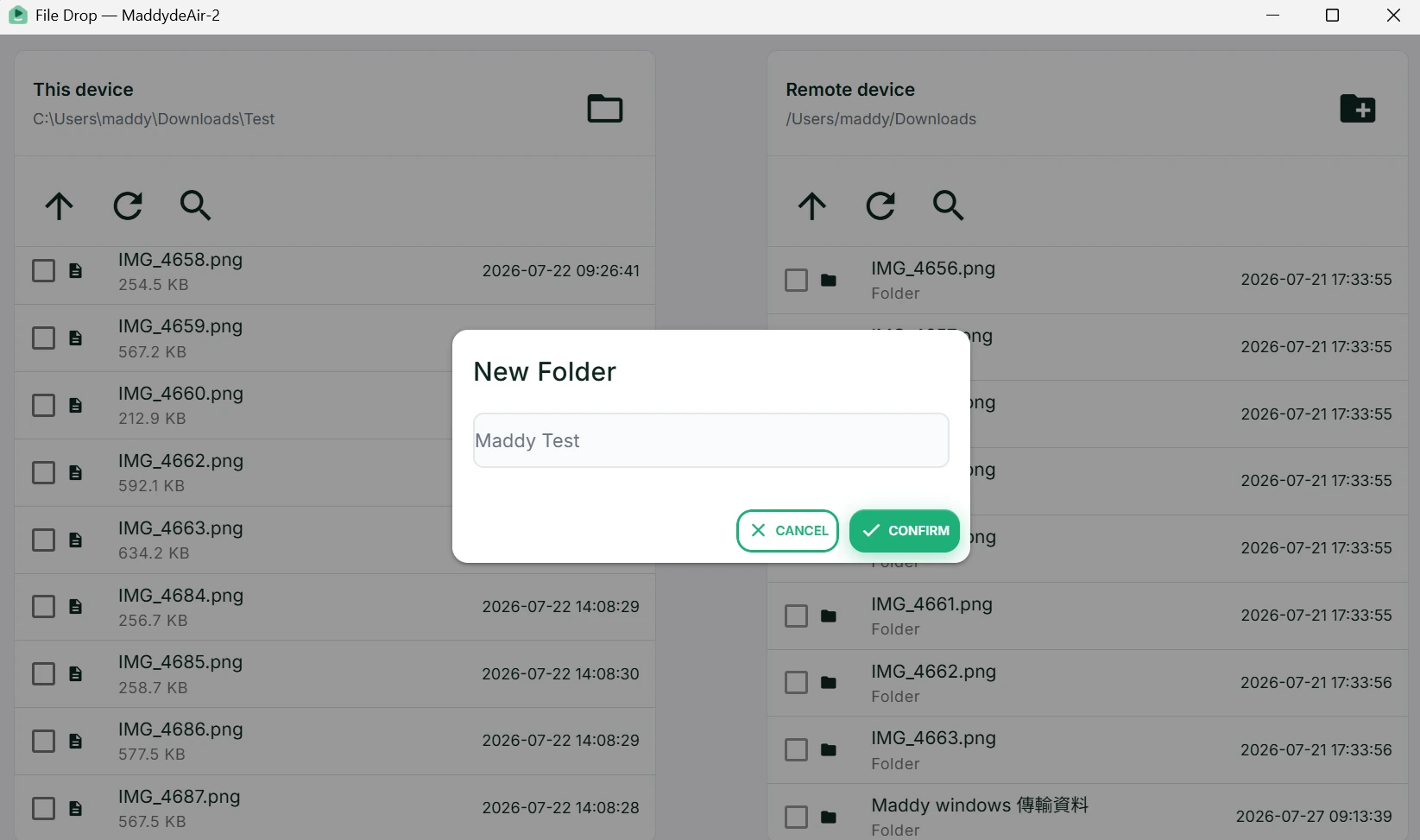
HomiPlay includes File Drop. It creates a secure virtual network between your devices so files move directly from one to the other. The dialog splits into "This device" on the left and "Remote device" on the right, and both sides let you browse folders, go up a level, create a new folder, and refresh.
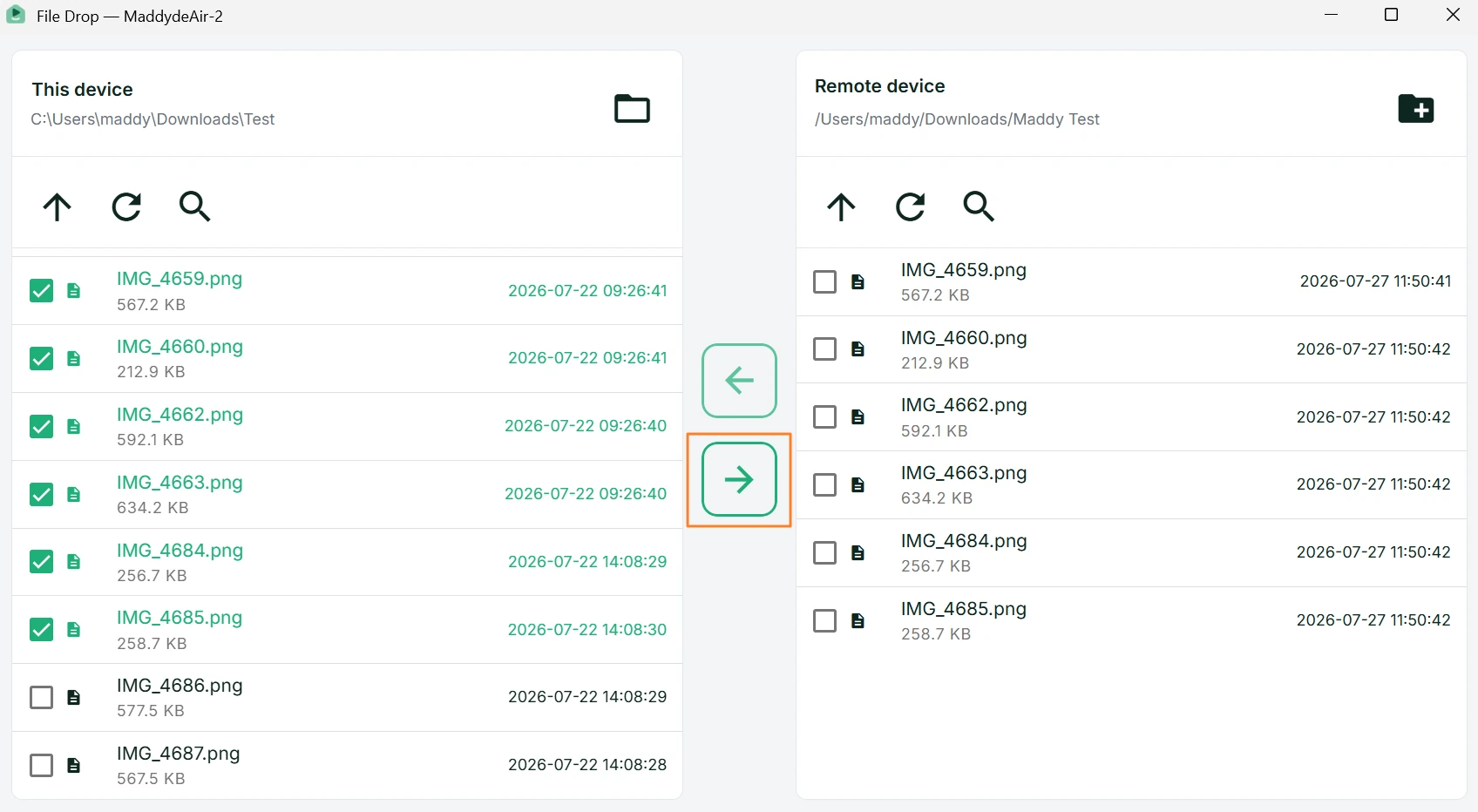
Select the files you want to transfer, then click the matching arrow button in the center to start. Live transfer speed is shown while it runs, and you can cancel at any point. If the remote device requires an access password, you are prompted for it first, so only you can reach those files.
⚡ More direct: No cloud relay and no physical drive. The file goes where it needs to in one hop.
🔐 More private: Your data never passes through a third-party cloud service.
🗂️ Easier to navigate: The two-pane layout keeps source and destination visible at once.
Benefits
Skips the upload-then-download round trip, so large files do not make you wait twice
Local and remote folders sit side by side, keeping source and destination clear
Browse, go up a level, create folders, and refresh, so you can organize files right where they land
Live transfer speed while it runs, and you can cancel at any time
Remote devices can require an access password to prevent unauthorized access
Files never pass through a third-party cloud service and stay between your own devices
How It Works
Install HomiPlay on Both Devices and Sign In
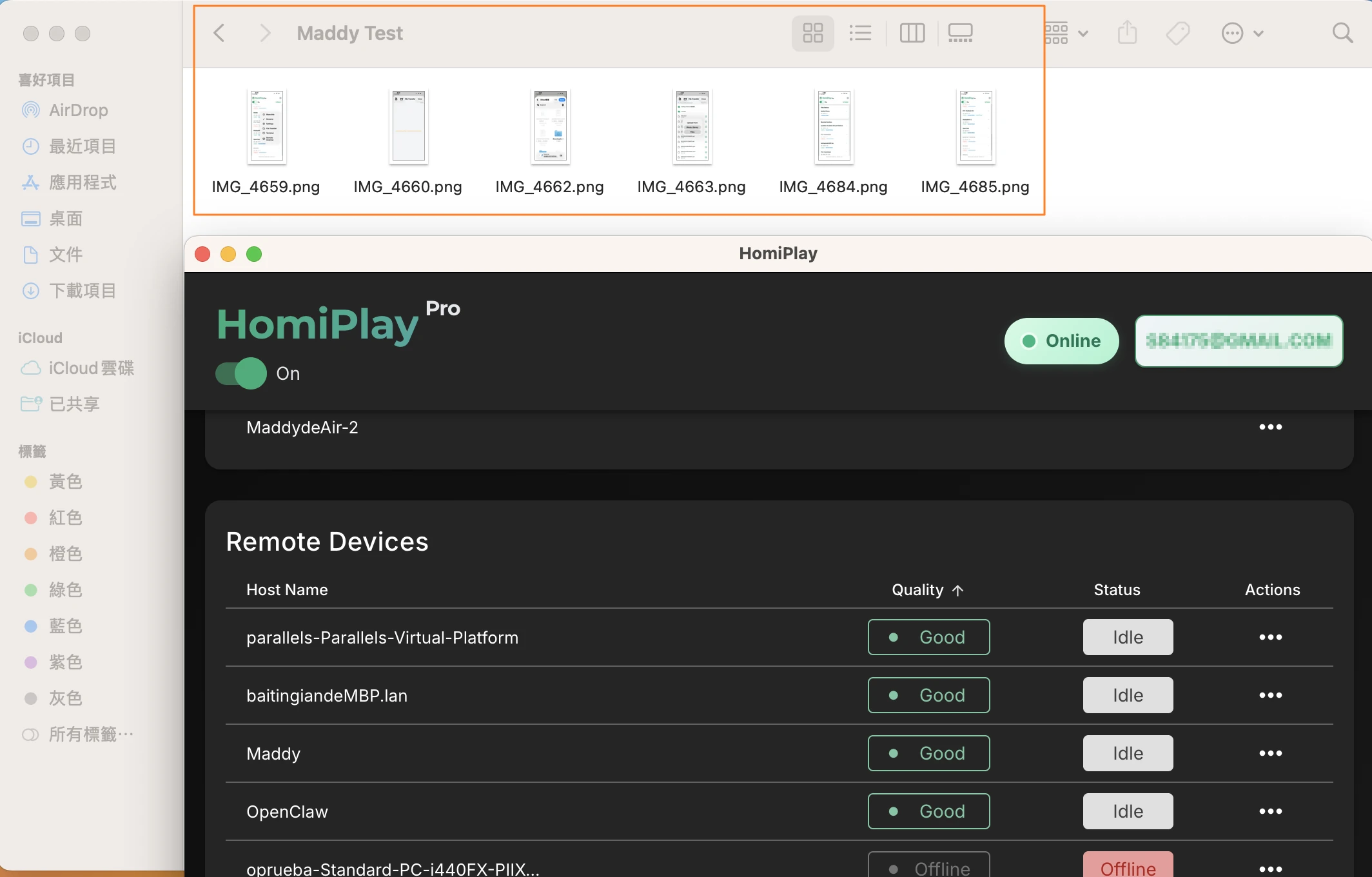
Install HomiPlay on both devices and sign in to the same account, then return to the dashboard and confirm the target device shows as "online." Note: File Drop supports Windows, macOS, Linux, Android, iPhone, and iPad.
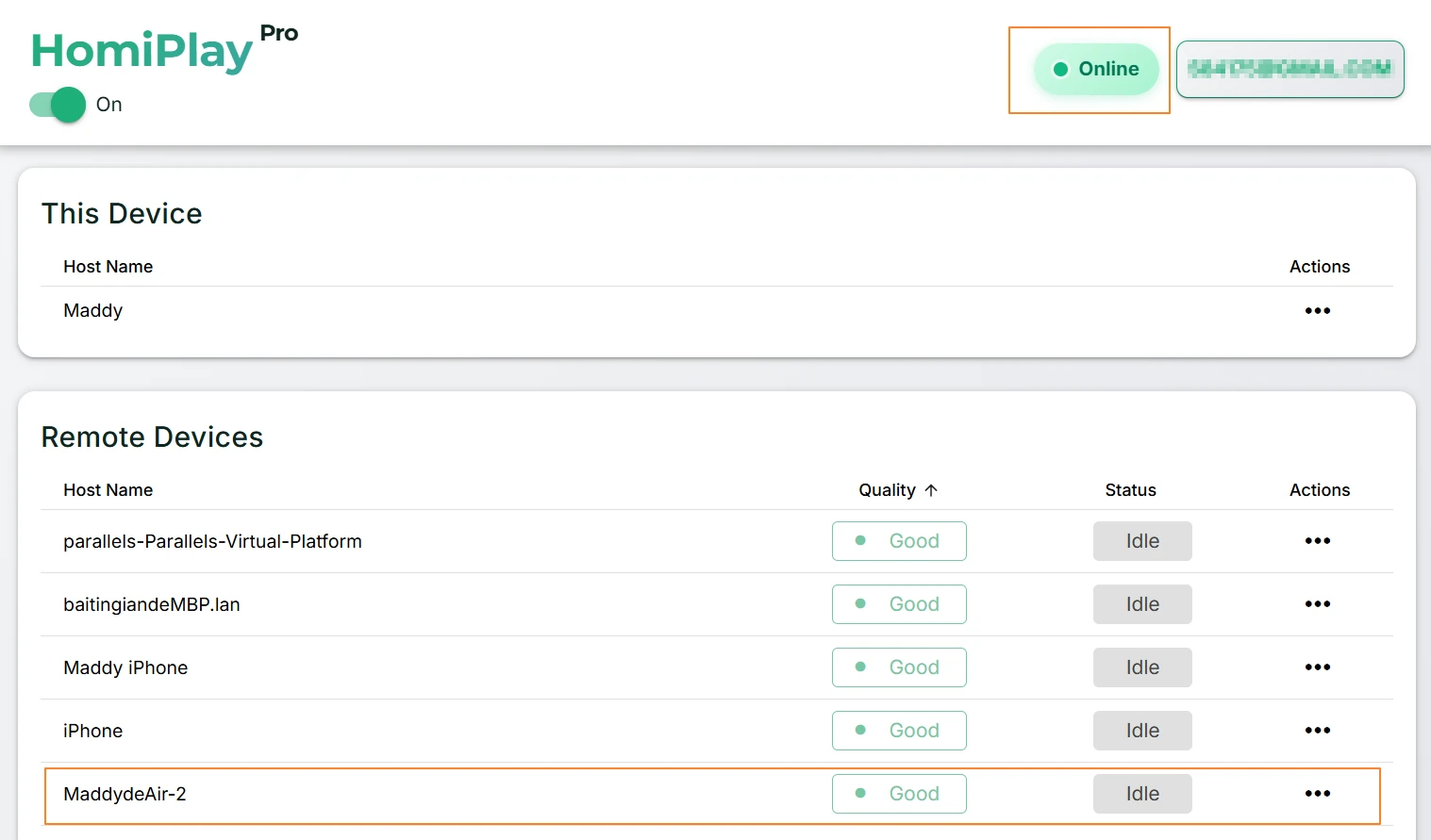
Open "File Drop" from the Device Menu
In the dashboard device list, open the target device's menu and choose "File Drop." If that device has an access password set, you will be prompted to enter it before the remote file list loads.
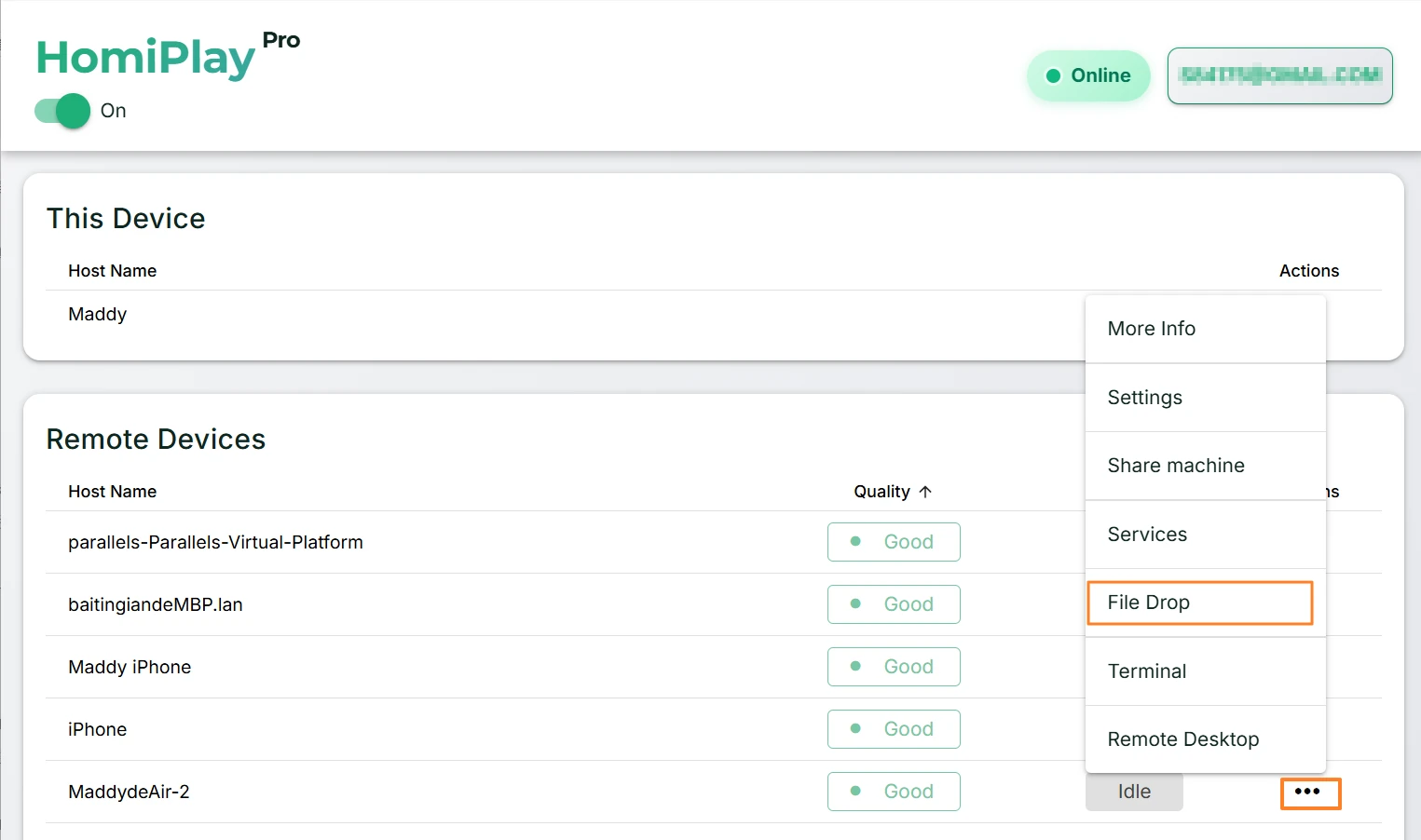
Browse Local and Remote Folders Side by Side
The left pane is your "Local device" and the right pane is the "Remote device." On either side you can open folders, use "Parent folder" to go back, click "Refresh" to reload the list, and use "New folder" to create a destination.
Select Files and Choose a Transfer Direction
Select one or more files using the checkboxes in either the left "This device" pane or the right "Remote device" pane, then click the matching arrow button in the center. The right arrow sends local files to the remote device, while the left arrow transfers remote files back to this device. Files are placed in the specified folder on the opposite side.
Finish the Transfer
A confirmation appears once the transfer completes. Open the destination folder you chose in Finder or File Explorer and the files are already there, stored in their original format as ordinary files. Nothing needs to be exported from the app, so you can open or keep editing them right away.
Other Use Cases
Share Devices Across Locations and Collaborate Without Distance
Temporarily share a Windows, macOS, Linux, or other HomiPlay device with a specific user without handing over account credentials. Access expires automatically when the sharing period ends.
Learn MorePlay your PS5 remotely just like you're at home.
Connect faster, play without lag, and enjoy clear visuals.
Learn MoreAccess Your Home OpenClaw AI Workspace Remotely
Securely connect back to your home OpenClaw, local LLMs, and AI agents with no VPN, fixed IP, or port forwarding.
Learn MoreCross the screen boundary, seamlessly continue your unfinished work
Extend your office workstation's performance directly to the screen in front of you. Without changing any of your habits, elegantly and perfectly merge your workflows across locations in a full desktop environment.
Learn MorePut your entire PC in your pocket, handle important tasks anytime with a tap
A remote experience redefined for touch screens. Break device boundaries and turn your phone into your exclusive portable window. Check progress, reply to messages, and master remote control with one hand, anytime, anywhere.
Learn MoreForgot your cable? Bridge your phone and PC data in a second
Your cloud briefcase in your pocket. Instantly send recorded media from your phone to your PC for editing, or download presentations from your remote PC to your phone for review. Data flows without barriers.
Learn MoreStay safe on public WiFi with your own VPN.
Route your connection back home so your data is no longer exposed.
Learn MoreAccess Your Home NAS via HomiPlay
Securely and quickly access files, photos, and multimedia on your home NAS from anywhere.
Learn More